In Buenaventura, humid, salty air corrodes contacts and, combined with dust, clogs fans. A computer that shuts down on its own or slows down often isn’t broken: it needs maintenance.
Why equipment fails more on the coast
- Humidity: when equipment moves from an air-conditioned room into humid heat, water condenses on its parts.
- Salt air: sea air corrodes connectors, ports, memory modules and screws. That is why green or white stains appear on contacts.
- Dust: mixed with humidity it forms a paste that sticks to fans and heat sinks and traps the heat inside.
The result is equipment that overheats, restarts without warning, fails intermittently or loses ports. Most of this can be prevented with regular cleaning and inspection.
What preventive maintenance includes
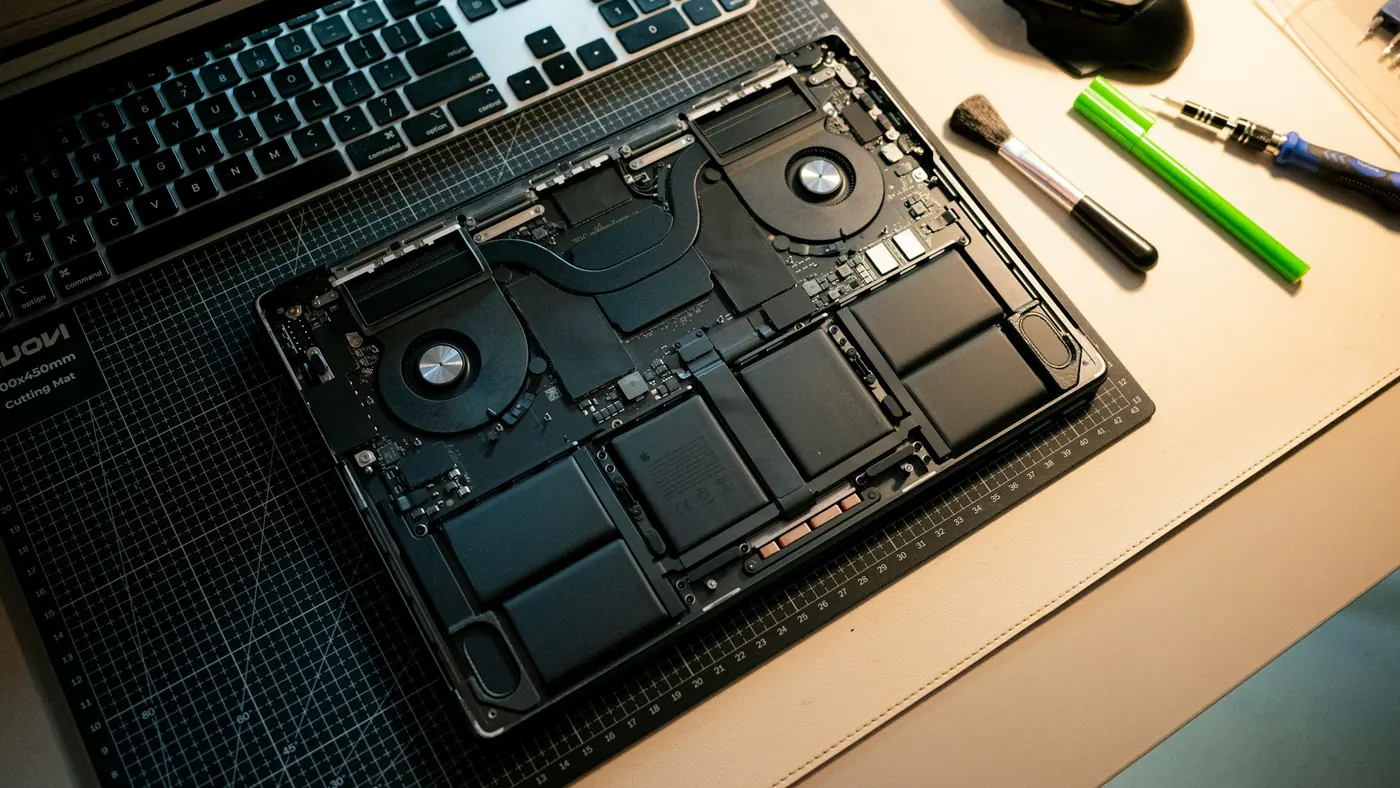
- Internal cleaning of fans, heat sinks and the power supply, with compressed air and an antistatic brush.
- Contact inspection and cleaning with electronics cleaner, to remove corrosion from memory modules, connectors and ports.
- New thermal paste when the processor runs hot.
- Drive health check and, on laptops, a battery check.
- Updates to the operating system, drivers and antivirus.
- Backup verification: that backups are running and can be restored. We explain this in backups for businesses.
- A report with what was done, what was found and what should be repaired or replaced.
How often to do it
| Environment | Suggested frequency |
|---|---|
| Office with air conditioning | Every 6 months |
| Office without air conditioning or near the sea | Every 3 to 4 months |
| Dusty warehouses, workshops and port areas | Every 2 to 3 months |
| Servers and equipment running 24 hours a day | Every 3 months |
Daily care that makes equipment last longer
- Keep the tower off the floor: that’s where dust and humidity build up, and it gets splashed when the floor is mopped.
- Leave room to breathe: don’t block the vents or use a laptop on a bed or a cushion.
- Control the room’s humidity with air conditioning or a dehumidifier. Relative humidity between 40% and 60% is ideal.
- Avoid sudden temperature changes: if you bring a laptop from a cold room to a hot one, wait a few minutes before turning it on.
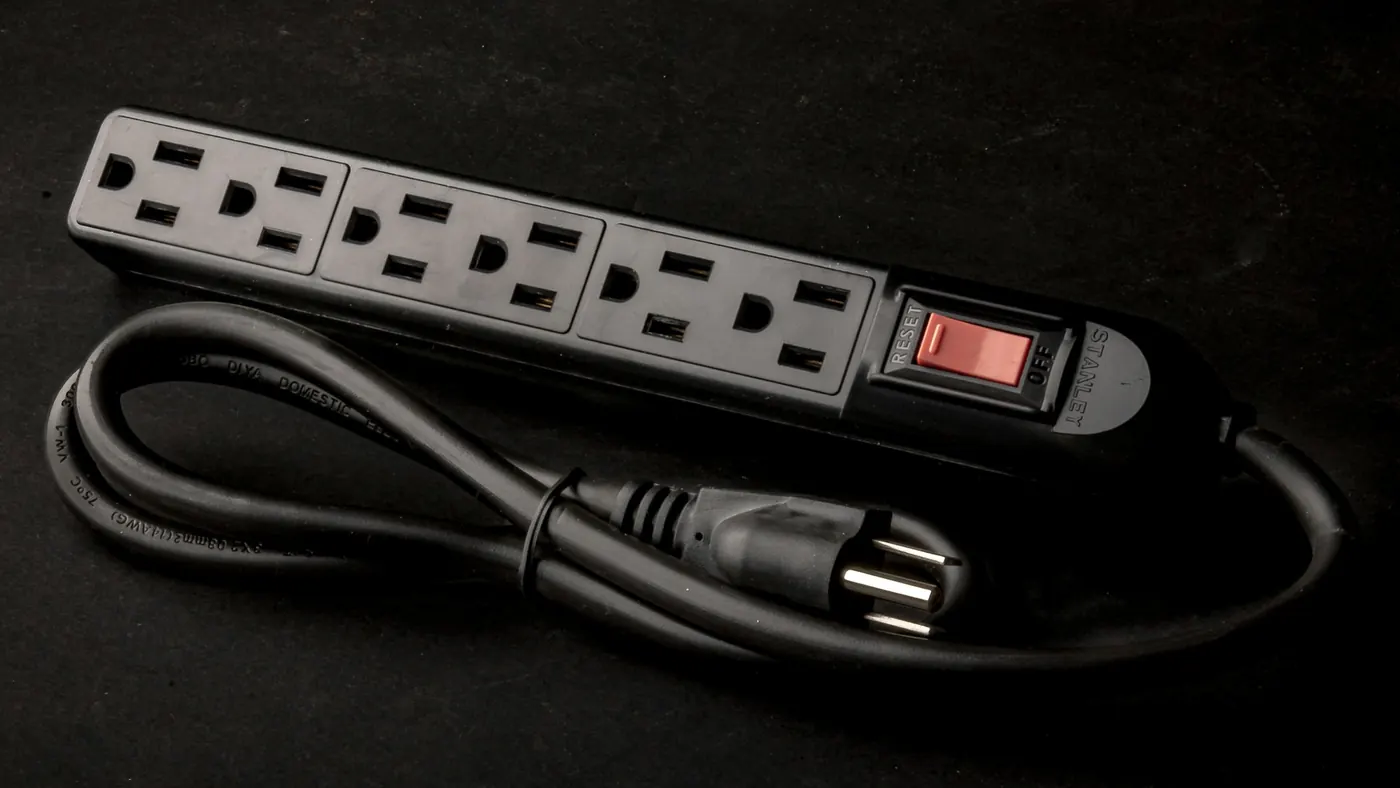
- Plug it into a voltage regulator or a UPS to protect it from power fluctuations. We explain how to choose one in UPS units and voltage regulators.
- Don’t clean the inside with damp cloths or a household vacuum: moisture and static electricity damage components.
Signs your computer needs a check-up
- The fan is louder than usual or never stops.
- The computer shuts down or restarts on its own, especially under load.
- It’s slow even without many programs open.
- Some USB ports or the audio jack work only some of the time.
- You see green or white stains on the connectors.
- The laptop battery lasts much less than before or looks swollen.
Need a maintenance plan for your company’s equipment?
We reply within 24 hours, and advice is free.